Cart
Cart
|
Home > Online Product Documentation > Table of Contents > Updating an XML Document-Getting Started Updating an XML Document-Getting StartedEach of the following topics contains instructions for editing a sample XML document. You should perform the steps in each topic before you move on to the next topic. After the first topic, some steps depend on actions you performed in a previous topic. This introduction to updating XML documents in Stylus Studio is organized as follows: Opening a Sample XML DocumentTo open the your-quotes.xml sample XML document in Stylus Studio:
1. Select
File >
Open from the menu bar. Stylus Studio displays the
Open dialog box.
Alternatives
: Press Ctrl+O or click
Open
Alternative: If the Stylus Studio
2. Navigate to the
examples\quotes directory in your Stylus Studio installation directory.
3. Double-click
your-quotes.xml. Stylus Studio displays the
your-quotes.xml document in the XML editor. The initial view of the document is the
Text view, as you can see by the tab at the bottom of the window.
Updating the Text of a Sample DocumentWhen you update an XML document in the Text view of the XML editor, you can use the usual editing tools, as well as tools tailored for handling XML. Each of the following topics contains instructions for editing a sample XML document. You should perform the steps in each topic before you move on to the next topic. After the first topic, some steps depend on actions you performed in a previous topic. This section provides instructions for Displaying Line NumbersStylus Studio lets you optionally display line numbers in most of its editors. Line numbers provide simple, unobtrusive points of reference that can make working large or complex documents easier. Line numbers are off by default; turn them on now. To display line numbers:
1. Select
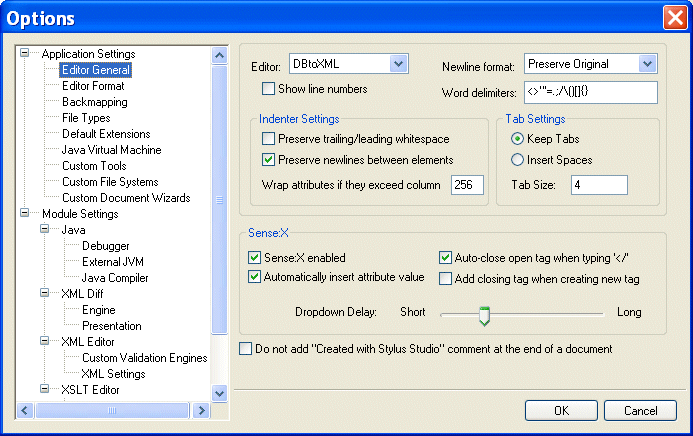
Tools > Options from the Stylus Studio menu.
Stylus Studio displays the Options dialog box.
2. Click
Application Settings > Editor General.
3. Select
XML Editor from the
Editor drop-down list.
4. Click
Show line numbers.
5. Click
OK.
Adding Elements in the Text View of a Sample DocumentTo add elements in the Text view of your-quotes.xml:
1. In the XML editor window, click in the first line just after
<ticker>.
2. Press Enter and type
<quote><company>data</.
Sense:X Auto-CompletionAs soon as you type the closing forward slash, Stylus Studio displays company> because it is the only element that is appropriate to close. Automatic closing of open tags is part of Stylus Studio's Sense:X intelligent editing. You can change this and other Sense:X options on the Editor General page of the Options dialog box - for example, you can have Stylus Studio display a list of appropriate elements, even if that list includes one only item. This document does not have a DTD or XML Schema associated with it. But suppose for a moment that it does have an associated schema. As soon as you type <, Stylus Studio would display a pop-up list of the elements you could add at that location. You need only double-click the element you want to add.
Copying and Pasting in the Text View of a Sample Document
This topic is part of a sequence. If
To copy and paste elements in the Text view of your-quotes.xml:
1. Use the mouse to select the text for one
quote element and its contents.
2. In the menu bar, select
Edit >
Copy.
Alternatives : Press Ctrl+C or click Copy.
3. Scroll down in the XML editor and click just before
</ticker>.
4. In the menu bar, select
Edit >
Paste.
Stylus Studio copies the
Alternatives: Press Ctrl+V or click
Paste.
Undoing Operations in the Text View of a Sample Document
This topic is part of a sequence. If
To undo operations performed on the your-quotes.xml document:
1. In the menu bar, select
Edit >
Undo to remove the text you just pasted.
Alternative: Press Ctrl+Z.
2. In the menu bar, select
Edit >
Redo to replace the text you just removed.
Alternative: Press Ctrl+Y.
3. In the XML editor window, click
Indent XML Tags
 , which is the left most button.
Stylus Studio displays a message that alerts you that there is an open tag for a
4. In the alert box, click
OK. Because the document is not well-formed XML, Stylus Studio does not insert indents in the document. The next topic,
Inserting Indents in the Text View of a Sample Document, shows how to fix the document so that it is well-formed.
5. In the menu bar, click
Edit.
The Undo and Redo operations are no longer active. After you click the Indent XML Tags button, you cannot automatically undo or redo recent changes. It does not matter whether or not Stylus Studio actually inserts the indents. After you make another change, the Undo operation becomes active again. Inserting Indents in the Text View of a Sample Document
This topic is part of a sequence. If
To insert indents in your-quotes.xml:
1. In the XML editor tool bar, click
Indent XML Tags
again.
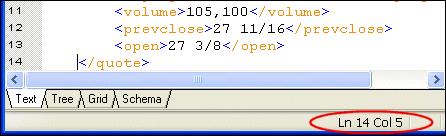
Stylus Studio displays the message that indicates that a close tag is missing. It specifies the element name, and the line and column numbers that identify where the error was found.
2. In the alert box, click
OK.
Stylus Studio moves the cursor so that it appears immediately after the
3. In line 2, click after the
</company> tag and type </. By default, Stylus Studio displays
quote> because it is the only element that is appropriate to close.
4. In the XML editor tool bar, click
Indent XML Tags
.
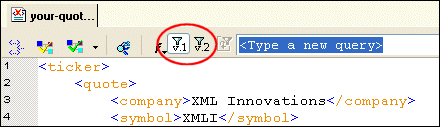
This time, Stylus Studio correctly indents the XML text. Indent XML Tags changes your XML document by inserting white space. If this is undesirable, and you want to check for well-formedness, click the Tree tab at the bottom of the XML Editor window. If the document is well-formed, Stylus Studio displays the tree representation. If the document is not well formed, Stylus Studio displays a message that indicates the reason the document is not well formed and the location of the error or omission. Querying in the Text View of a Sample DocumentStylus Studio provides support for both XPath 1.0 and 2.0. You control the version you want Stylus Studio to use to process your XPath using the v.1 and v.2 buttons in the XML Editor tool bar. The default XPath used is version 1.0.
This topic is part of a sequence. If
To query your-quotes.xml:
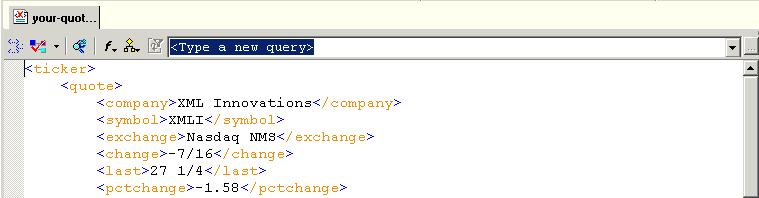
1. Click in the
<Type a new query> field at the top of the XML Editor.
Alternative: Press F6. This moves the focus immediately to the query definition field.
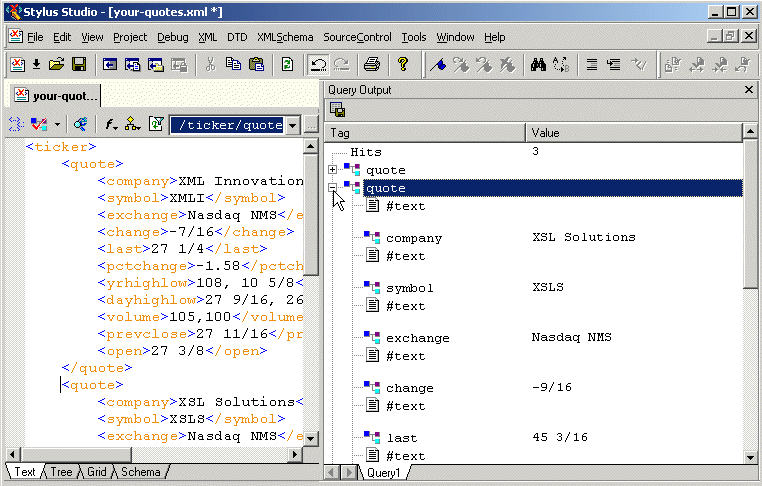
2. Type
/ticker/quote and press Enter.
Stylus Studio runs the
3. In the
Query Output window, expand the second
quote element to view its contents.
4. Click the
symbol element.
In the Text view, Stylus Studio uses its backmapping feature to move the cursor to the source element for the symbol result element you clicked.
5. In the
Text view, click the down arrow to the right of the query field.
6. Click
<type a new query>.
7. Type
//company and press Enter.
Stylus Studio runs the new query and displays the results on a new tab (labelled Query2) in the Query Output window. Stylus Studio adds a new tab for each query you define.
8. Click the
Query1 tab to view the results for the first query.
9. Click
Save Result
 at the top of the
Query Output window.
at the top of the
Query Output window.
Stylus Studio displays the Save As dialog box.
10. In the
URL: field, type
query1.xml and press Enter.
This saves the results from the
11. Close the
Query Output window by clicking the
x in that window's upper right corner.
Deleting a QueryYou cannot explicitly delete a query. In addition, queries you define are not saved with an XML document unless that document belongs to a Stylus Studio project - if you close the XML document and then reopen it, the queries you defined in the previous editing session are no longer there.
Updating the Schema of a Sample Document
This section provides instructions for updating the internal DTD for
When an XML document has an external DTD, you can view the external DTD in the Schema tab of the XML Editor, but you cannot edit it. To be able to edit an external DTD, you must open it in the DTD editor. When an XML document has an internal DTD, you can view and edit it in both the Schema tab and the Text tab of the XML editor. You should have already performed the steps in Updating the Text of a Sample Document. Each of the following topics contains instructions for editing the sample XML document. You should perform the steps in each topic before you move on to the next topic. After the first topic, some steps depend on actions you performed in a previous topic. This section includes the following topics: For more information, see Defining a DTD - Getting Started. Creating a Sample SchemaTo create the schema of a sample XML document:
1. If it is not already open, open
your-quotes.xml. See
Opening a Sample XML Document if you need help with this step.
2. At the bottom of the XML editor window, click the
Schema tab.
Stylus Studio displays the Schema tab, and opens the Properties window. The Schema tab displays a DTD tree, which is currently empty.
3. To create a schema for
your-quotes.xml, select
XML > Create Schema from XML Content from the Stylus Studio menu.
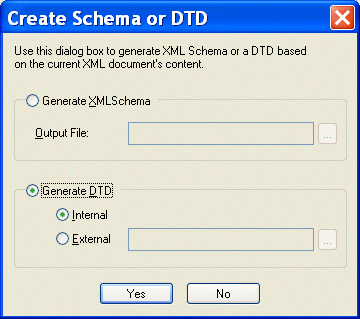
Stylus Studio displays the
Create Schema or DTD dialog box. By default, Stylus Studio generates an internal DTD and inserts it in a
4. Click
Yes to instruct Stylus Studio to create a DTD based on the XML document content.
Stylus Studio displays a tree representation of the new, internal DTD. It also displays the Properties window.
Defining a Sample Element
This topic is part of a sequence. If
To define a new element in the Schema view of the sample schema:
1. Click the
company element in the
Schema tab.
This selects the
The
Content Model property indicates the allowable contents for a
2. Click the
DTD node.
In the left tool bar, Stylus Studio activates only those buttons that are applicable to the DTD - you can add elements, entities, comments, and so on. But you cannot add an attribute definition, a reference to an element, or a
3. In the left tool bar, click
New Element Definition
 . Stylus Studio displays an entry field at the bottom of the tree.
4. Type
location and press Enter. Stylus Studio displays the properties for the new
location element in the
Properties window.
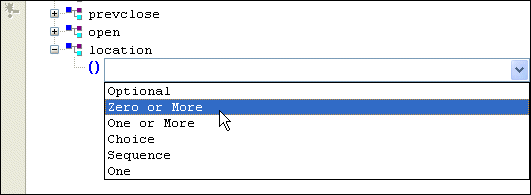
5. In the left tool bar, click
New Modifier
 . Stylus Studio displays a drop-down menu of options that specify the rules for the occurrence of the children of the new element.
6. Double-click
Zero or More (or click once to select it and press Enter).
7. In the left tool bar, click
Add #PCDATA
 . Your definition of the
location element specifies that it can contain only raw data.
Adding an Element Reference to a Sample Schema
This topic is part of a sequence. If
To update the definition of the quote element to include an optional location element:
1. In the
Schema tab, expand the
quote element.
2. Click its
Sequence modifier.
3. In the left tool bar, click
New Modifier
.
Stylus Studio displays an entry field for the new modifier at the end of the list of modifiers that already apply to the
4. In the drop-down list, double-click
Optional.
5. In the left tool bar, click
New Reference to Element
 . Stylus Studio displays an entry field after the new
Optional modifier.
. Stylus Studio displays an entry field after the new
Optional modifier.
6. Type
location and press Enter.
7. To move the
location element to be earlier in the sequence, click its
Optional modifier.
8. In the XML editor top tool bar, click
Move Up
 repeatedly until the
location element is where you want it to be.
repeatedly until the
location element is where you want it to be.
Defining an Entity in a Sample Schema
This topic is part of a sequence. If
To define an entity in the internal DTD for your-quotes.xml:
1. Click the
DTD node.
2. In the left tool bar, click
New Entity
 .
.
At the end of the schema, Stylus Studio displays Ent and a entry field for the name of the new entity.
3. Type
TCBCC for the name of the entity and press Enter.
In the Properties window, Stylus Studio displays the properties for the new entity.
4. In the
Properties window, double-click the
Value field.
5. Type
The Country's Best Computer Company and press Enter.
Exploring Other Features in a Sample Schema
This topic is part of a sequence. If
To toggle white space or validate your document:
1. Click
Toggle Display of White Space
 to display nodes that represent white space in the DTD. Click the button again to hide the white space nodes.
2. Click
Validate Document
 .
.
Stylus Studio displays a message in the Output window that indicates that the document is valid.
Updating the Tree Representation of a Sample Document
This section provides instructions for updating the DOM tree representation of the
You should have already performed the steps in Updating the Schema of a Sample Document. Each of the following topics contains instructions for editing the sample XML document. You should perform the steps in each topic before you move on to the next topic. After the first topic, some steps depend on actions you performed in a previous topic. This section includes the following topics: Adding an Element to a Sample Document TreeTo add an element to the tree representation of your-quotes.xml:
1. If it is not already open, open
your-quotes.xml.
See Opening a Sample XML Document if you need help with this step.
2. At the bottom of the XML Editor window, click the
Tree tab.
Stylus Studio closes the Properties window.
3. Click the plus sign next to the
ticker element to expose the children of the
ticker element.
4. Click
New Element
in the left tool bar to add a
quote element to the document.
Stylus Studio displays a drop-down menu that lists the elements you can add at that position in the tree.
5. Click
quote and press Enter.
Stylus Studio displays a field next to the new
6. Click outside the field to close it without entering data.
Changing an Element's Data in a Sample Document Tree
This topic is part of a sequence. If
In the Tree tab of your-quotes.xml, to change the data that an element contains:
1. Expand the third
quote element.
2. Click the
symbol element.
3. In the XML Editor top tool bar, click
Change Value
 .
.
Stylus Studio activates the field to the right of the symbol element and selects the current value.
4. In the active field, type
XSOL and press Enter.
5. To the right of the
exchange element, right-click
Nasdaq NMS.
Stylus Studio displays a shortcut menu.
6. Click
Change Value. Stylus Studio activates the value field for the
exchange element.
7. In the active field, type
NYSE and press Enter.
Adding Attributes and Other Node Types to a Sample Document Tree
This topic is part of a sequence. If
To add attributes and other types of nodes to your-quotes.xml:
1. Click the last
quote element in the tree.
2. Click
New Attribute
 .
.
Stylus Studio displays an attribute name field immediately below the selected
3. In the attribute name field, type
agent and press Enter.
Stylus Studio displays a default value for the attribute,
4. In the attribute value field, type
Star Brokers and press Enter.
Stylus Studio displays an entry field for a new attribute name, allowing you to easily add a number of attributes, one after the other.
5. Click outside the attribute name field to close it.
6. In the XML editor top tool bar, click
Validate Document
.
Stylus Studio displays a message in the
Output window that indicates that the document is not valid. The DTD does not specify the
7. Click the
agent attribute.
8. In the XML Editor top tool bar, click
Delete Node
 .
.
9. Click
Validate Document
again.
Stylus Studio displays a message in the Output window that indicates that the document is now valid. Adding an Entity Reference to a Sample Document Tree
This topic is part of a sequence. If
To add an entity reference to your-quotes.xml:
1. If it is not already selected, click the
quote element you defined in the previous topic.
2. In the left tool bar, click
New Element
to add subelements to the new
quote element.
Stylus Studio displays a drop-down menu that lists a number of elements that you can insert at this point. Scroll the list to view them all.
3. Click
company, which is first in the list, and press Enter.
Stylus Studio displays a field next to the element name. You can enter data here, such as the name of the company. But rather than entering data, suppose you want to refer to an entity. To refer to an entity:
4. Click outside the field or press the Esc key.
5. Click
New Entity Reference
 , which is the last button in the left tool bar.
Stylus Studio displays a drop-down menu that lists the defined entities.
If the
New Entity Reference button is not active, click
Toggle Display of Entity References
6. Double-click
TCBCC.
Stylus Studio inserts the text
7. Click the
Text tab at the bottom of the XML editor window.
Stylus Studio displays the
8. Click the
Tree tab.
Updating a Sample Document Using the Grid Tab
This section provides instructions for updating the
To update XML document using the Grid tab:
1. If it is not already open, open
your-quotes.xml.
See Opening a Sample XML Document if you need help with this step.
2. At the bottom of the XML Editor window, click the
Grid tab.
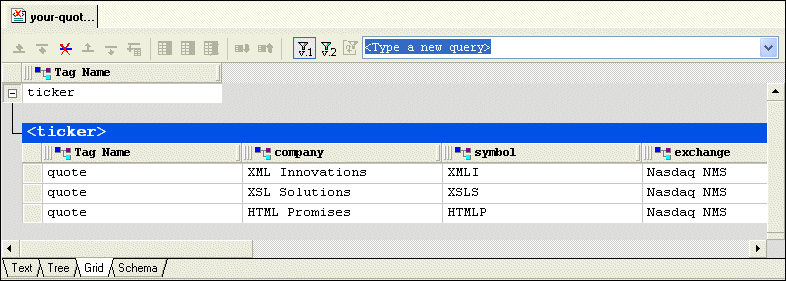
Stylus Studio displays a table that contains the XML data.
The left most column, with the
Tag Name heading, contains the children of the
3. Select the last row by clicking to the left of the last
<quote> element.
The row is highlighted in blue.
4. Click the
Insert row after (
 ) button.
A new instance of the
5. Type
XML Designs and press Enter.
Stylus Studio creates the value for the
6. Press Tab (or use the right arrow key) to move the cursor to the next cell in the row.
8. If you want, you can continue to add the data contained in a
quote element.
Modifying ValuesIt is easy to change and delete values in grid fields: Moving Around the GridYou can move around the grid using the mouse and the keyboard. Using the mouse, click where you want to place the cursor. Using the keyboard: |

XML PRODUCTIVITY THROUGH INNOVATION ™
 .
.


 .
.






 in the XML editor top tool bar. This button allows you to control whether you can refer to entities.