Working with Fields

This section describes some of the features you can use to work with input file fields. It covers the following topics:

Naming Fields

Every field in an input file - including fields in the same region and row - can have its own field element name. All field element names ( <field> is the default) include the namespace prefix in the XML output if one was specified.

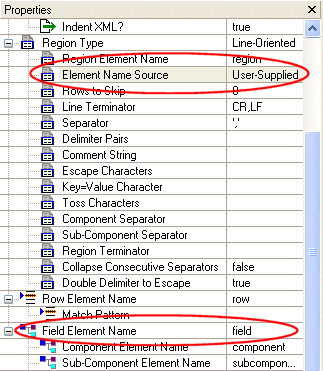
Field names are determined by two properties - Element Name Source in the Region Type properties, and Field Element Name, as shown in Figure 171.

Figure 171. Sources for Field Names in XML Output

The Element Name Source indicates the origin of the field name used in the XML output when converting the input file. The Field Element Name property specifies the actual value used to name the <field> element.

Using the Element Name Source Property

There are three values for the Element Name Source property:

  • User-Supplied - Specifies that you will supply names for the <field> element. You can do this by editing the Field Element Name property, or by double-clicking the field element name in the Convert to XML document grid to edit the field name directly in the grid.
  • The default value of the Field Element Name property is field. If you use other values for the Element Name Source property, Stylus Studio provides the values for the Field Element Name property.

    User-Supplied is the default setting for the Element Name Source property.

  • From First Row - You can use this setting to take <field> element names from the first row in the region. If you have used the Rows to Skip property to skip rows in a region, the first available region is used to supply the <field> element names.
  • Consider the following input file:

Make:Model:Year
               
BMW:R1150RS:2004
               
MZ:Scorpion:1995
               
Ducati:ST2:1997


If you set Element Name Source to From First Row, the XML output uses Make, Model, and Year for the <field> element names, as shown here:

<?xml version="1.0" encoding="utf-8"?>
               
<root>
               
	<row>
               
		<Make>BMW</Make>
               
		<Model>R1150RS</Model>
               
		<Year>2004</Year>
               
	</row>
               
	<row>
               
		<Make>MZ</Make>
               
		<Model>Scorpion</Model>
               
		<Year>1995</Year>
               
	</row>
               
	<row>
               
		<Make>Ducati</Make>
               
		<Model>ST2</Model>
               
		<Year>1997</Year>
               
	</row>
               
</root>


You can specify any row as the source for field names using the Get Field Names from This Row from the row's shortcut menu.

  • WS-EDI Standard - This setting allows rows and fields to be named based on the WS-EDI Standard level 0. See http://www.ws-edi.org for more information on this standard.

More About Using Rows for Field Names

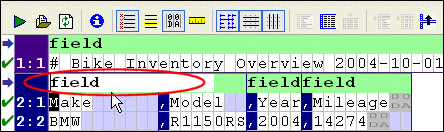
When you use an existing row as the source for field names in the XML output, Stylus Studio changes the display of that row in the document grid to a darker blue to indicate this, as shown here:

Figure 172. Using a Row for Field Names

In addition, preceding rows in that region, if any, are grayed out, and the value of the Rows to Skip field in the Region Type properties changes to reflect this.

In the event that the first row has fewer names than there are fields in one or more subsequent lines in the file, Stylus Studio names the extra fields <fieldn >, where n is the field number relative to other fields in the row. Also, if the values in the row are not valid XML identifiers, they are converted using the following rules:

How to Name Fields

To provide user-supplied field names:
1. Display the Properties window if it is not already displayed (click View > Properties on the Stylus Studio menu).
2. Place the cursor anywhere in the field you want to name.

The Field Element Name property displays the current value for the field.

3. Type the new name in the Field Element Name property and press Enter.

Alternative:

1. Double-click the field name in the grid.

The field name field becomes editable.

Figure 173. You Can Edit the Field Name Directly in the Grid

2. Type a new value for field and press Enter.
To specify alternate sources for field names:
1. Display the Properties window if it is not already displayed (click View > Properties on the Stylus Studio menu).
2. Select the field name source you want to use from the Element Name Source drop-down list.
3. Press Enter.

Defining Fields

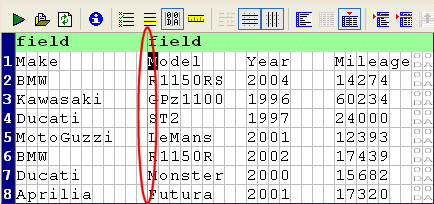
You can define fields in any region in a fixed-width input file, as shown in Figure 174. Once you have defined a field, you can change its size by simply dragging it to any column in the grid.

Figure 174. Line Identifying a Field in a Fixed-Width Input File

Each field you define is treated as a separate element in the XML output by the converter. The input file shown in Figure 174, for example, would result in XML with two <field> elements, one consisting of the make of motorcycle, and one consisting of the model, year, and mileage. You can use the field feature to exercise control over the XML - defining separate fields for make, model, year, and mileage, for example.

Consider the following input file:

Make        Model    Year    Mileage
               
BMW         R1150RS  2004    14274  
               
Kawasaki    GPz1100  1996    60234  
               
Ducati      ST2      1997    24000  
               
MotoGuzzi   LeMans   2001    12393  
               
BMW         R1150R   2002    17439  
               
Ducati      Monster  2000    15682  
               
Aprilia     Futura   2001    17320 


By default, each row is considered to have a single field, containing Make, Model, Year, and Mileage, resulting in XML output like this:

<?xml version="1.0" encoding="utf-8"?>
               
<root>
               
	<row>
               
		<field>Make        Model    Year    Mileage


</field>
               
	</row>
               
	<row>
               
		<field>BMW         R1150RS  2004    14274  


</field>
               
	</row>
               
...


If you specify fields for Model, Year, and Mileage, the XML output by the converter looks like this:

<?xml version="1.0" encoding="utf-8"?>
               
<root>
               
	<row>
               
		<field>Make</field>
               
		<field>Model</field>
               
		<field>Year</field>
               
		<field>Mileage


</field>
               
	</row>
               
	<row>
               
		<field>BMW</field>
               
		<field>R1150RS</field>
               
		<field>2004</field>
               
		<field>14274  


</field>
               
	</row>
               
...


Neither approach is always correct, but this feature gives you the ability to define the type of XML output that is appropriate for your use.

Tip


Of course, in this example, the next logical step might be to use the first row ( Make, Model, Year, and Mileage) as the field names as described in Naming Fields.

To define a field:
1. Place the cursor in the document grid on the character with which you want to start the new field.
2. Click the Begin Field in This Column ( ) button. This action is also accessible from the ConvertToXML menu and the shortcut menu in the Convert to XML Editor.

Stylus Studio displays a thin orange line that identifies the start of the newly defined field.

To remove a field:

The procedure for removing a field is the same as the procedure for defining one - place the cursor on any character adjacent to the field line you want to remove and click the Begin Field in This Column ( ) button.

Creating Notes for Fields

Stylus Studio allows you to create notes on individual fields. These notes are for reference purposes only; they are not output in the XML.

To create notes for a field:
1. Click the entry field for the Notes property.

Tip


The Notes property is in the Field Element Name > Source Data Type tree in the Properties window. These properties appear only for rows for which a match pattern exists. See Pattern Matching for more information on this topic.

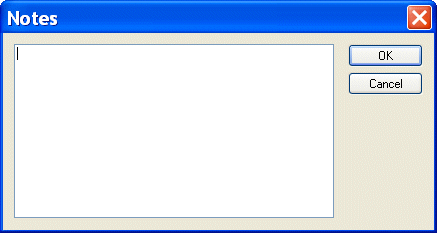
The Notes dialog box appears.

Figure 175. Notes Dialog Box

2. Type the notes you want to associate with the field and click the OK button.

Component and Sub-Component Fields

Some file formats - many EDI variants, for example - allow fields to be subdivided into arrays, sub-fields, or composite fields. Collectively, these fields are referred to as component fields in Convert to XML. Typically, the headers of these files contain information about the character used to specify component fields. Convert to XML uses this information to set the default value for the Field Component Separator property and render XML output accordingly.

Consider the following input file, which uses a semi-colon (;) to specify component fields:

Make;Model;Year;Color;Seat
               
BMW;R1150RS;2004;grey,metallic;black,vinyl
               
MZ;Scorpion;1995;green,clearcoat;black,vinyl
               
Ducati;ST2;1997;red,clearcoat;black,leather


Using the first row to supply the field names and default Component Element Name ( component), the Convert to XML creates the following XML output (first two elements shown for brevity):

<?xml version="1.0" encoding="utf-8"?>
               
<root>
               
	<row>
               
		<Make>BMW</Make>
               
		<Model>R1150RS</Model>
               
		<Year>2004</Year>
               
		<Color>
               
			<component>grey</component>
               
			<component>metallic</component>
               
		</Color>
               
		<Seat>
               
			<component>black</component>
               
			<component>vinyl</component>
               
		</Seat>
               
	</row>
               
	<row>
               
		<Make>MZ</Make>
               
		<Model>Scorpion</Model>
               
		<Year>1995</Year>
               
		<Color>
               
			<component>green</component>
               
			<component>clearcoat</component>
               
		</Color>
               
		<Seat>
               
			<component>black</component>
               
			<component>vinyl</component>
               
		</Seat>
               
	</row>
               
...


The <component> elements are created as subelements of the <Color> and <Seat> elements.

For line-oriented regions in files containing component fields, you can change the default Field Component Separator property, and the Component Element Name and Component Element Name properties, that is, the name you want to use for the component fields' container elements.

 
Free Stylus Studio XML Training: