Cart
Cart|
|
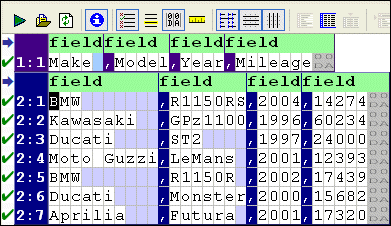
Home > Online Product Documentation > Table of Contents > Parts of an Input File Parts of an Input FileInput files displayed in the Convert to XML Editor's document grid consist of regions, rows, and fields. Each section has its own set of properties. Some, like Region Type, are read or inferred from the file; others, like Region Element Name, are values you provide that affect the XML output. This section covers the following topics: RegionsA region is the largest organizational component in an input file. Regions are interpreted by Stylus Studio when the input file is first read into the Convert to XML Editor, and you can define your own. An input file can contain one or more regions; every input file has at least one region that starts at offset 0. Multiple regions are common in binary files, which often contain a fixed-size header and then one or more records containing the actual data. In the Convert to XML Editor, regions are numbered, starting with 1, followed by the row number. For example, in an input file with two regions, you might see rows labeled as follows: 1:1, 2:1, 2:2, 2:3, and so on, as shown here:
Region TypesRegions can be fixed-width or line-oriented. You can also set the Region Type property to Unknown. Regions that are marked as unknown are grayed out in the Convert to XML editor, and they are not converted to XML. Managing RegionsStylus Studio provides tools that let you create new regions, and join one region with another. You can also change a region's type, and mark a region so that it is excluded from output. For information on these and other topics, see Working with Regions. Rows
A
row is equivalent to a record, line, or tuple in the input file; a row is made up of fields. An example of a row is an employee record; examples of fields in an employee record include
Every region can have one or more rows. (A region cannot be empty.) In addition, a region can have multiple row types. Rows are selected for conversion to XML based on the match patterns expressed in the Match Pattern field of the Properties window. See Omitting Regions and Fields, and Rows for more information. Rows in a fixed-width region have the same width as the region itself; fields within each row are defined by a fixed number of columns. Stylus Studio uses a default value of 80 characters for row length in fixed-width regions, but you can adjust this as required from within the Convert to XML Editor. See Adjusting Fixed-Width Regions for more information. In a fixed-width region, you can In a line-oriented region, fields are separated by a separator character or string. These characters are inferred by Stylus Studio when it first reads the file, but you can change these and other characters if needed. See Working with Fields for more information. Fields
A
field is one or more columns in a row that contains data. Each different row type has its own independent set of fields. An example of a field in an employee record is
Stylus Studio supports many data types (string, Boolean, number, date, time, and so on) and recognizes many different input formats (like different date formats, for example). Properties vary based on data type - the
Base property, for example, is applicable only to
You can define your own fields in fixed-width input files. See Defining Fields for more information. Component and Sub-Component FieldsSome file formats, including many EDI variants, allow fields to be subdivided into arrays, sub-fields, or composite fields. Collectively, these fields are referred to as component fields in Convert to XML, and they are fully supported, both in terms of recognition and output. You can name the container element using the Component Element Name and Sub-Component Element Name properties. |

XML PRODUCTIVITY THROUGH INNOVATION ™